Patching PHP on IIS / Windows Server
A Blog from Mike Irving, Software Developer
By Mike Irving - Published: 22/10/2026
Yesterday news broke of severe remote code execution (RCE) vulnerabilities affecting the PHP programming language.
I am not a PHP Developer by trade, my staple for backend web coding is C# / .NET.
However, I have occasionally dabbled in PHP, taken on other people's websites, or perhaps used WordPress.
PHP is everywhere
PHP is widely used. I have seen estimates in the press in the last 24 hours giving wild figures that PHP is used on 60-70% of websites on the whole of the internet - and I do not doubt it!
From small websites, to business applications, WordPress to Government Portals - PHP is widespread.
The good news is that the language has been patched - and the recommended action is for all users to upgrade to the latest release.
Achieving that can either be easy or difficult, depending on your setup, and likely time consuming. Many cloud providers and website hosting services will have already updated. But if you have your own infrastructure, you will need to take manual action.
PHP on IIS on Windows Server
So, it is fair to say that most PHP code runs on Linux, often on Apache Server. But it is more than possible, and supported, to run elsewhere, including on Windows.
If you are running on a Windows Server, via IIS, it is fairly straightforward to rectify the vulnerabilities.
Unsure if you have PHP installed?
Many developers and systems administrators will be checking multiple servers to see if they need to patch.
If you are unsure whether you have PHP installed on a particular Windows Server, start by opening Internet Information Services (IIS) and switching to the top-level server settings.
if installed, you will see PHP Manager listed in the IIS section of the settings screen.
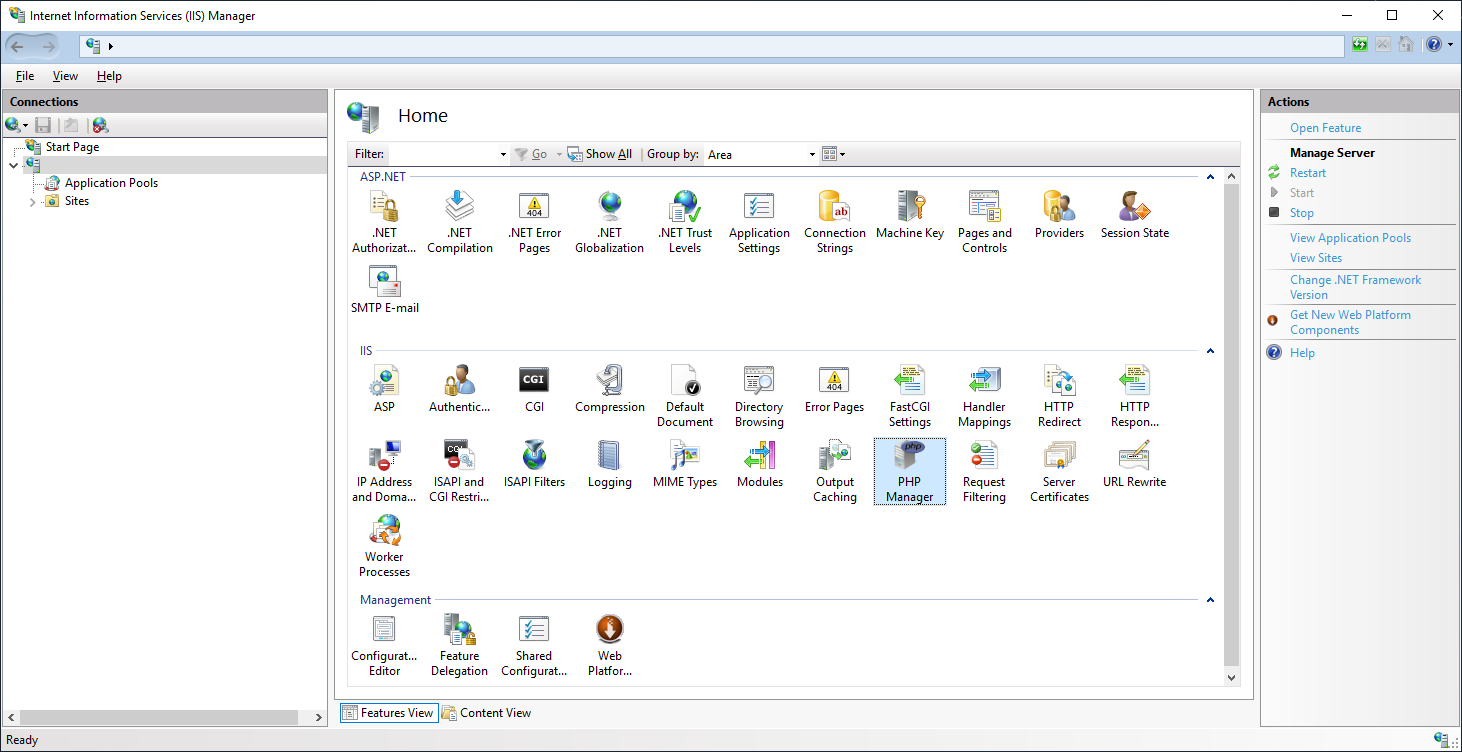
PHP Manager
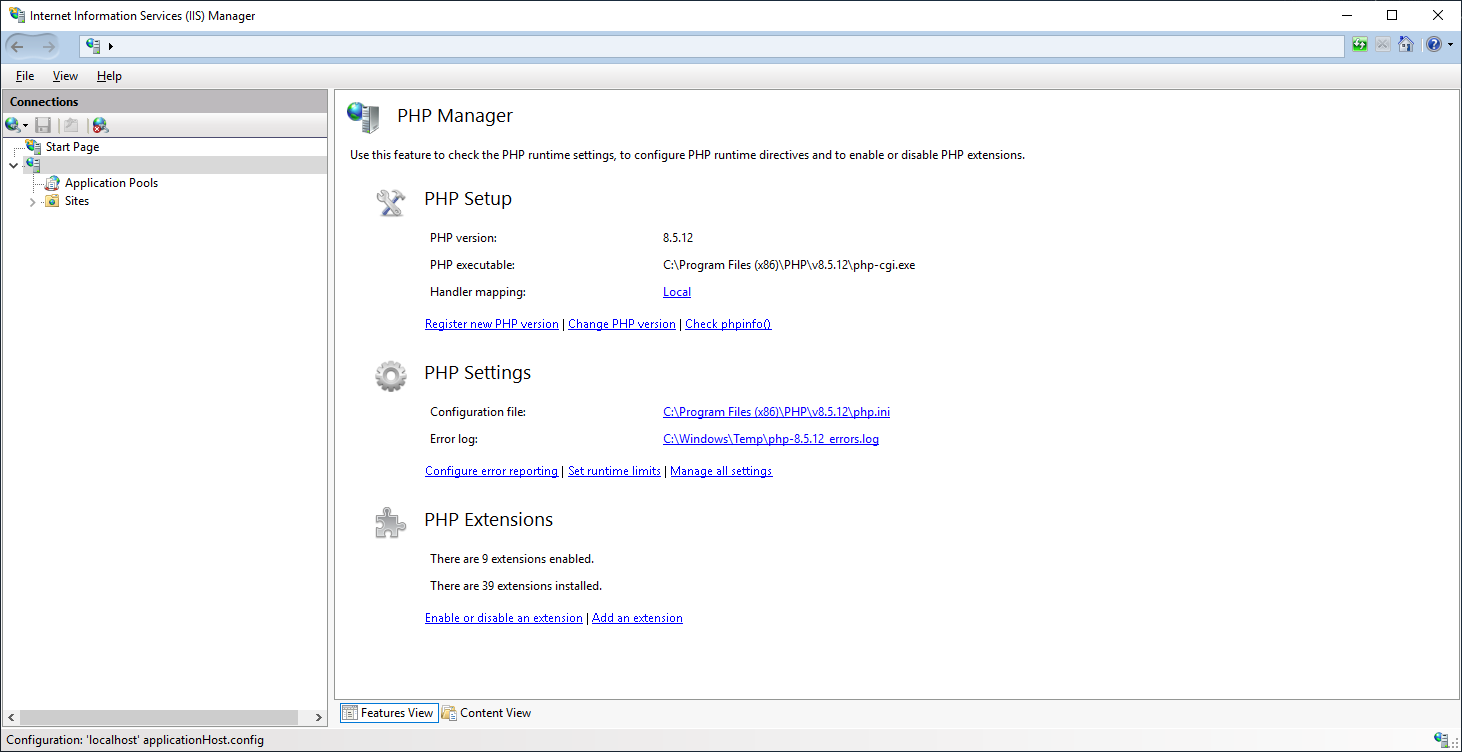
Double clicking on PHP Manager will open up a setup information screen.
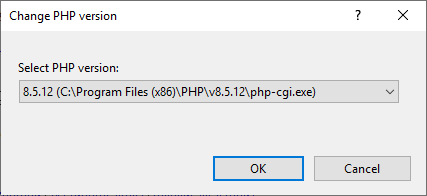
PHP version will show which version you have installed and are running by default. This version number may differ if you have several versions installed, and you can confirm this by clicking Change PHP version. If you have multiple versions installed, the resulting drop-down list will show them. Opening PHP Manager from a particular IIS Website will show the PHP version currently assigned to a particular website, if it differs from the default.
Upgrade to the latest version.
The advice from PHP themselves is now to update to the latest version - 8.5.12 at the time of writing this article, which addresses the recent security issues.
Go to the Windows Downloads and Instructions page of the PHP website - https://www.php.net/downloads.php?os=windows
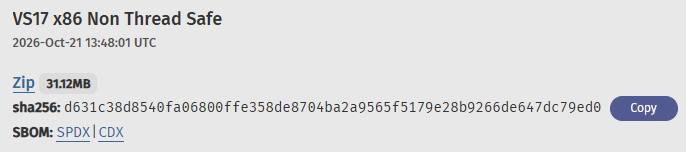
At first it is a little confusing, there are Thread Safe and Non Thread Safe editions. And versions for x64 or x86.
The official advice is: The Non-Thread Safe (NTS) version of PHP should be installed when using the FastCGI handler with IIS.
OK, so that bit is easy.
But x64 or x86? I suggest you go with whichever architecture you had for your previous version.
Check the PHP executable path in the PHP Manager screen, e.g. if Program Files (x86) is specified, you'll want to download the x86 flavour.
Back on the PHP website, click the Zip link to initiate a download for the correct package.
You will also require the Visual C++ Redistributable for Visual Studio 2015-2022 x64 or x86 to be installed.
These come from Microsoft, and are also linked to from the Downloads page of the PHP website.
Again, choose x86 or x64 as appropriate, to download that.

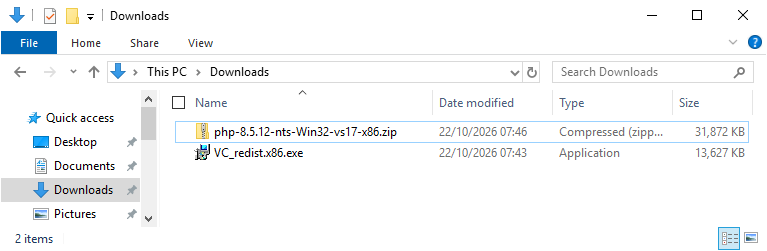
In your Downloads folder you will now have the PHP ZIP and the VC_redist installer package.
Install the Visual C++ Redistributable
This should take just a few minutes - indeed a matching version may already be installed.
Unzip the new PHP Version
Unzip the new PHP version to the PHP folder in the appropriate Program Files directory.
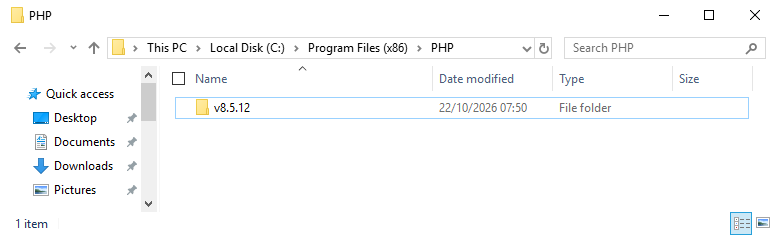
Click into it to verify the contents look correct.
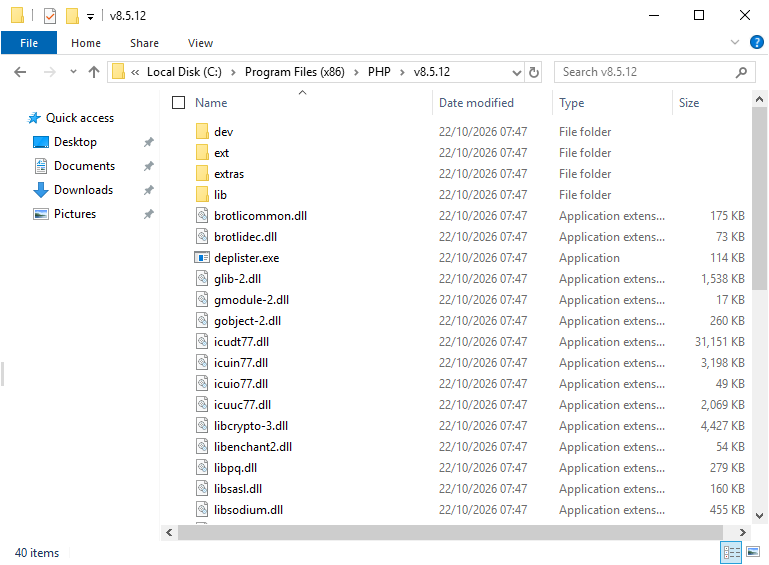
Register in IIS
Back in PHP Manager, click on Register new PHP version.
Specify / Find the path to the newly installed version.
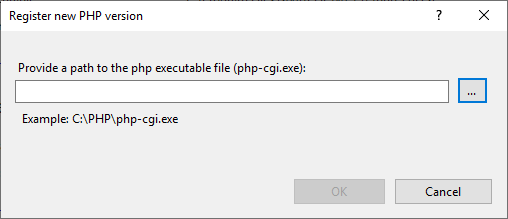
If successful, your setup will either automatically switch to that version, or you can click Change PHP version and select it.
Check phpinfo()
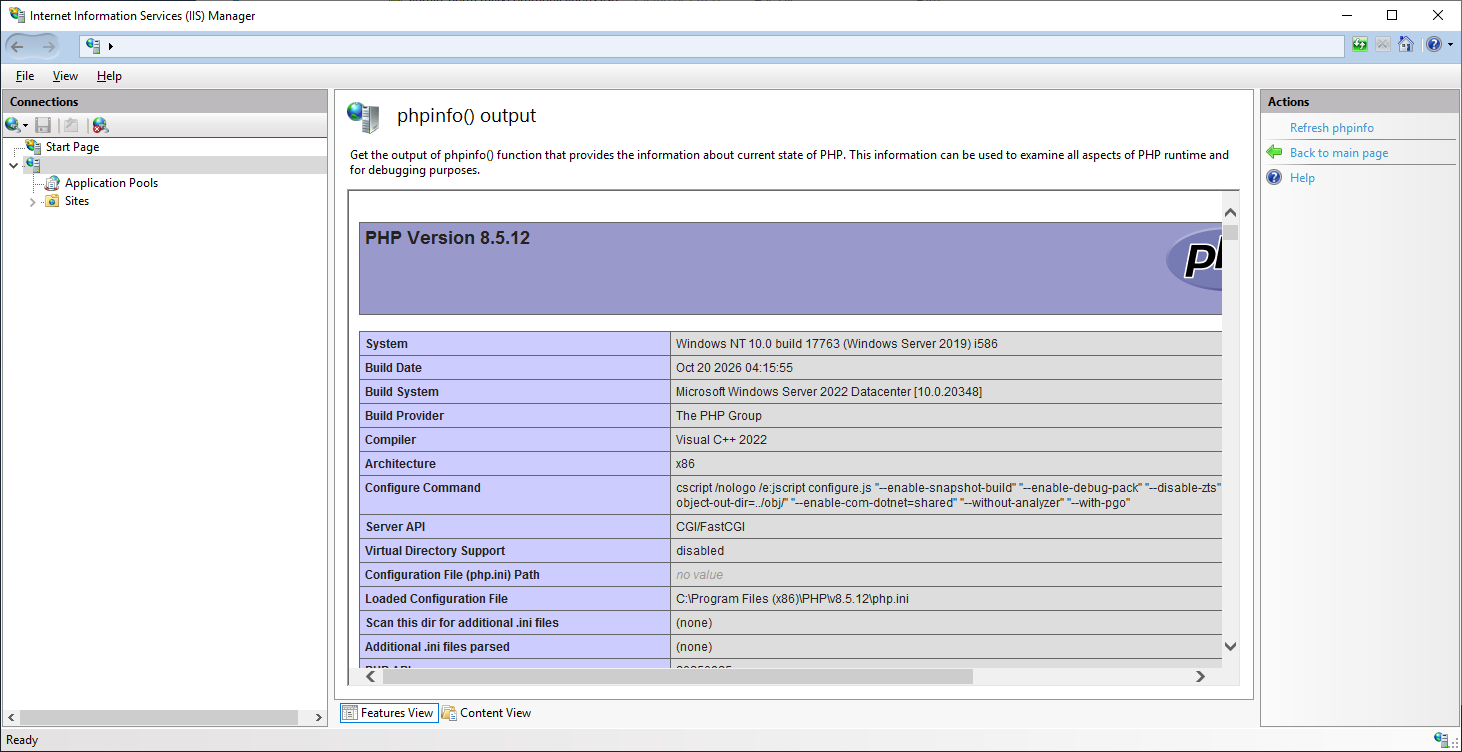
To verify you are on the correct version, click Check phpinfo() in PHP Manager.
A screen will be presented, and a little while later the output from phpinfo() will be shown - confirming 8.5.12 below.
Tidying up
I recommend you delete your older, compromised, versions of PHP.
Go back to the PHP folder in the Program Files directory and delete the older version folders.
Test your code
You have upgraded, but don't assume your code still works - especially if you have done a major version number upgrade.
Go test your code!
Need assistance?
These incidents certainly throw us unexpected hard work. Not every setup is so easy to fix.
If you need any advice or help on patching your setup, please get in touch.
View Blog Entries...
Page: 1, 2, 3, 4, 5, 6, 7, 8, 9, 10, 11