VS Code - Reconnecting GitHub Copilot
A Blog from Mike Irving, Software Developer
By Mike Irving - Published: 4/10/2026
If, like me, you have a GitHub Enterprise account at your place of work, you may have come into difficulty signing into GitHub Copilot in Visual Studio or VS Code.
Full Visual Studio IDE is the daily driver for my day job, and I only sporadically dip into Visual Studio Code. When I do so, I often find it has become detached from GitHub Copilot.
You could get dialogs or screens such as these showing up:
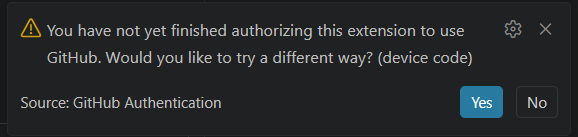
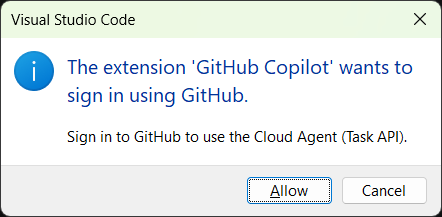
Clicking onward from these, you may then get this dialog, offering you ways to sign in:
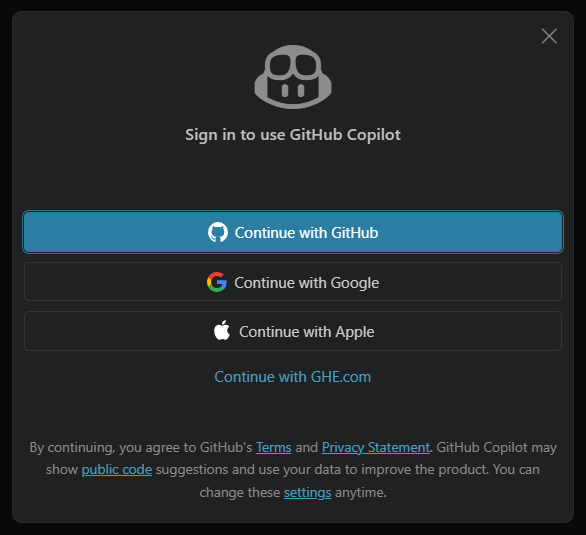
However, this is where the problems begin.
'Continue with GitHub' is for a standard GitHub account, whereas 'Continue with GHE.com' only works if your organisation has setup the {orgname}.ghe.com subdomain setup.
- If you click the GHE option, have GitHub Enterprise, but not the subdomain, you'll get a browser error!
- Clicking the standard GitHub option will only work if your organisation is signed in.
This what to do next.
Close any opened, failed, login pages, and shutdown VS Code.
Open your browser and navigate direct to github.com/enterprises/{orgname}
Then go through the login process, perhaps an SSO login in your company's case.
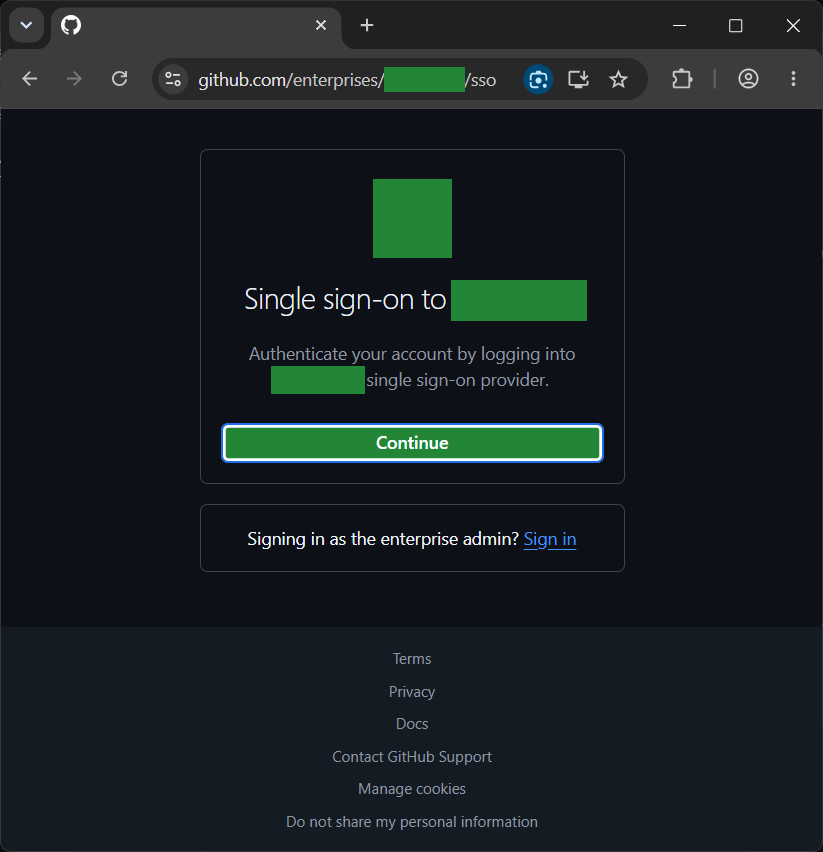
You can close the browser tab once logged in.
Go back to Visual Studio Code, and wait for / force the 'Sign in' screen
Click the 'Continue with GitHub' option.
A browser window should then open, with the below screen, recognising your recent GitHub Enterprise sign-in.
Click 'Continue' to 'Authorize Visual Studio Code'
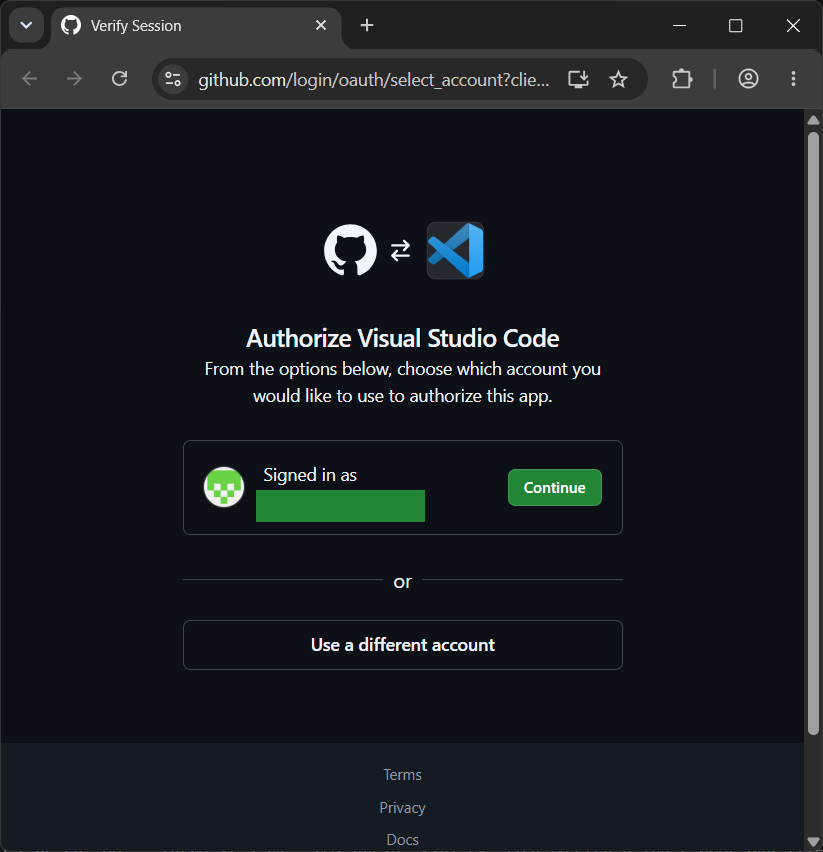
You may then get a screen detailing further permission requests
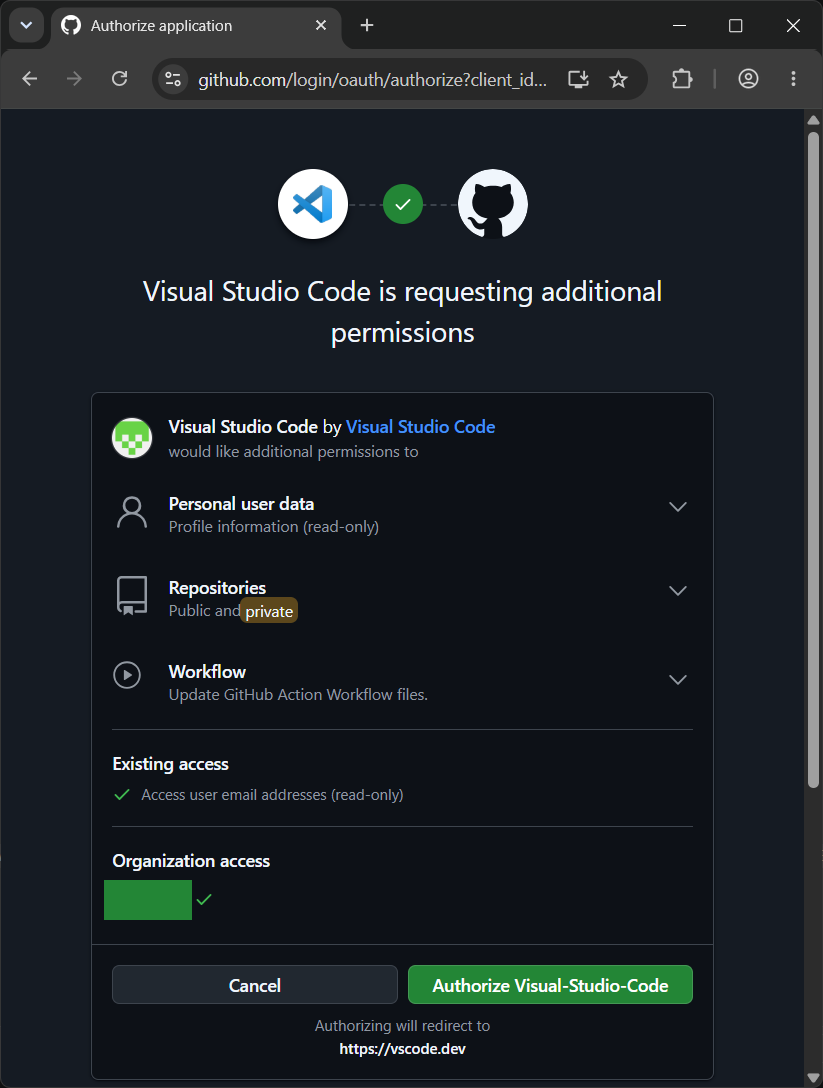
Clicking 'Authorize Visual-Studio-Code' should complete the process.
Your browser may then request to open Visual Studio Code - click 'Open Visual Studio Code':
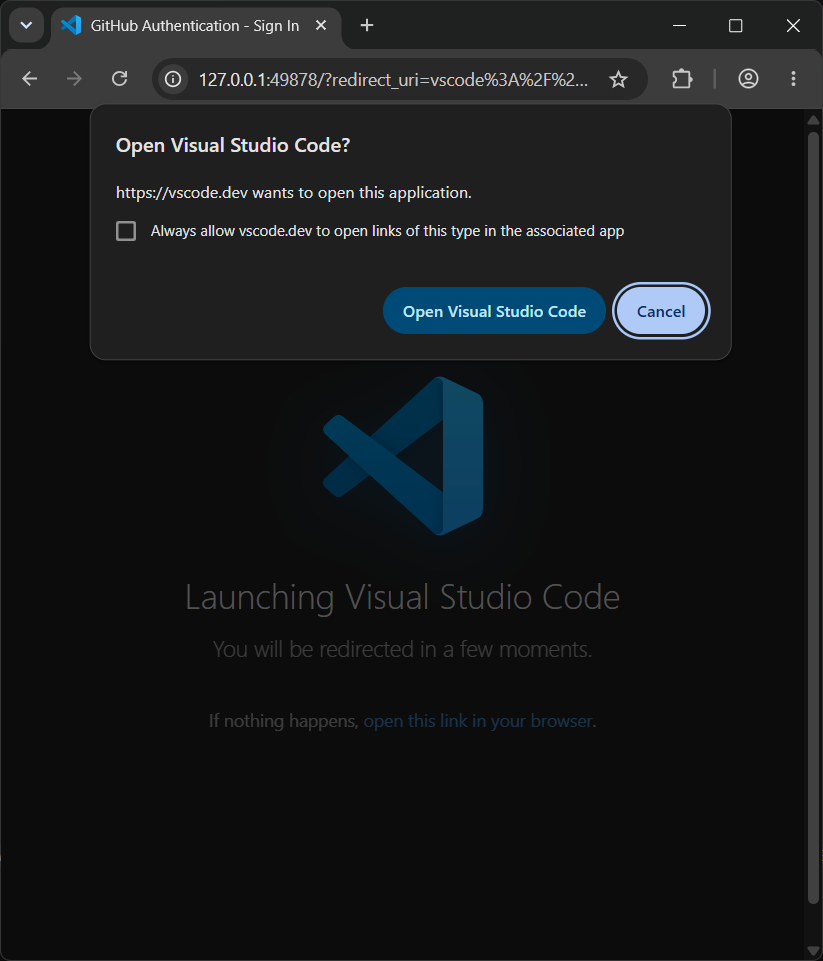
.. and that should be it - you should now be signed in!
Close and Re-open VS Code to confirm.
Your 'Models' list should be correct, and clicking the GitHub Copilot icon should confirm details about your organisation (screen may vary).
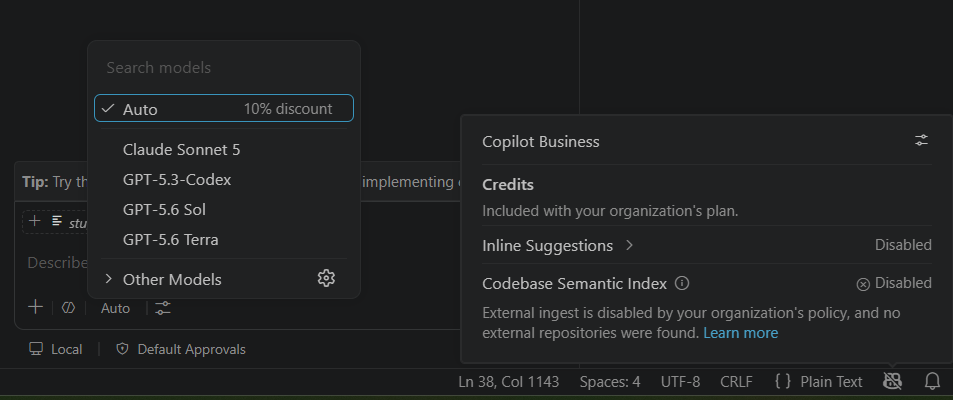
Experiences may vary, depending on your setup.
View Blog Entries...
Page: 1, 2, 3, 4, 5, 6, 7, 8, 9, 10, 11