Import MySQL Data into MS SQL Server
A Blog from Mike Irving, Software Developer
By Mike Irving - Published: 31/1/2009
Recently I have been working on a new shopping website, written in C# and SQL Server, that was to replace on old website that had been written in Perl, with a MySQL database.
The new website bears little resemblance to the old site, in terms of design, code or data. However, there was some old data in the MySQL Database that we wanted to retain access to.
In order to use the data in SQL Server 2005, or indeed in the Visual Studio 2008 / ASP.Net 3.5 project, I would need to import it from the old MySQL repository.
This process turned out to be very simple indeed, so I though I'd document the process below:
Firstly, you'll need to install the MySQL ODBC Driver on your working machine.
- if you dont have it, you can find it on the MySQL Connectors Download page.
Once installed, open ODBC Data Source Administrator, Add a System DSN to your MySQL Database, using the connector you have just installed.
Next, fire up Microsoft SQL Server Management Studio. Create a new database, or select an existing one you'd like to import data into.
Right click on the database, and select Import Data.
Select the .Net Framework Data Provider for Odbc as your source.
Choose or confirm your Destination table and database.
Next, Write a query to execute against the MySQL database, to specify the data to transfer.
i.e. SELECT * FROM ORDERS;
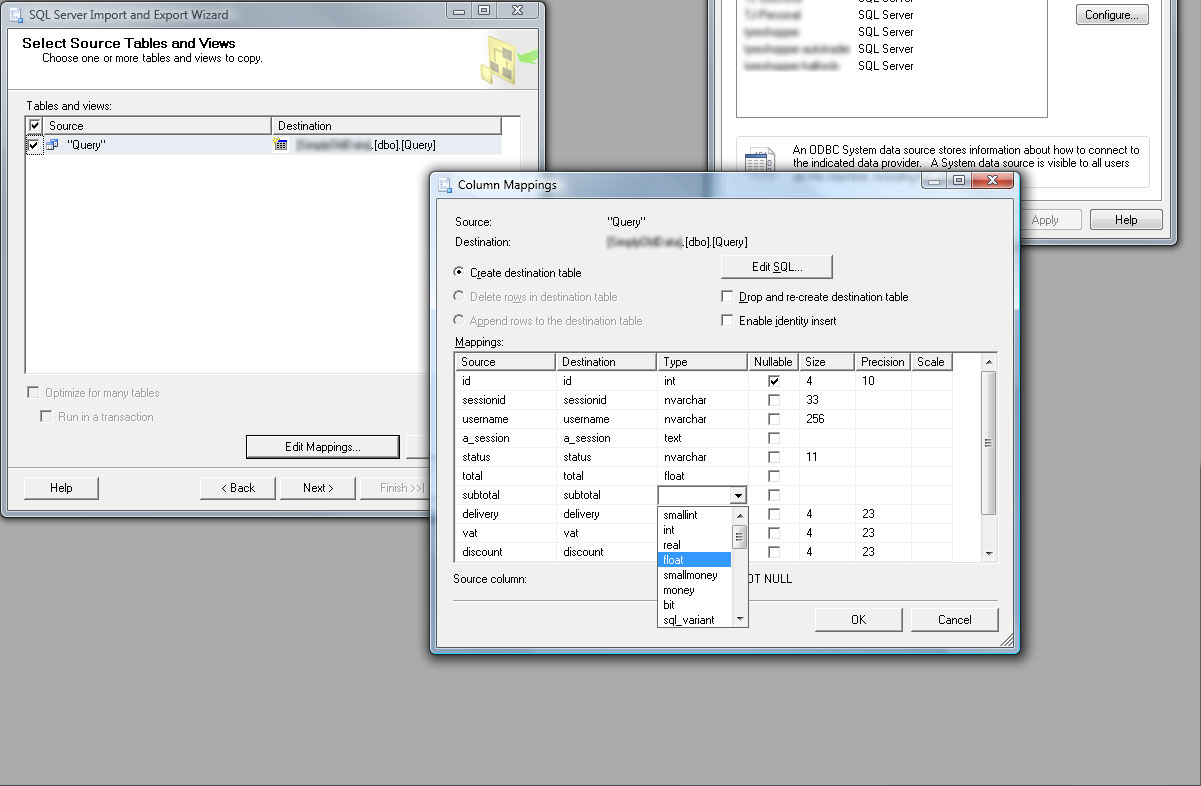
SQL Server will then attempt to match up MySQL Columns to MSSQL ones, for the data to be imported. If you want to, you can click Edit Mappings, Column Mappings and specify your own Data Column Properties.
The next part is simple, just click Run Immediately.
Within a few seconds, or minutes (depending on the size of your data), all will be complete and your data will be in SQL Server!
Rename the Query Table as appropriate, by default it will be given a generic name, i.e. "Query".
Repeat the process for any other tables you wish to import.
I was very impressed with how simple and quick this process was, and may well be doing such an import again for future projects.
View Blog Entries...
Page: 1, 2, 3, 4, 5, 6, 7, 8, 9, 10, 11